A USB serial number is the string a USB device hands to your PC through the iSerialNumber field of its USB device descriptor, and Windows stores it as the last part of the device instance ID you can read in Device Manager. As of September 2026 you can find it in 5 steps without extra software, or with one PowerShell line, and the same string also tells you the device's 4-digit vendor and product codes.
Many guides still point to wmic commands that no longer exist on current Windows 11, or hand you the volume serial instead. The methods here all come from Microsoft's current documentation. One case trips people up more than any other: Windows inventing a serial because the device never sent one.
How to Find a USB Serial Number in Device Manager
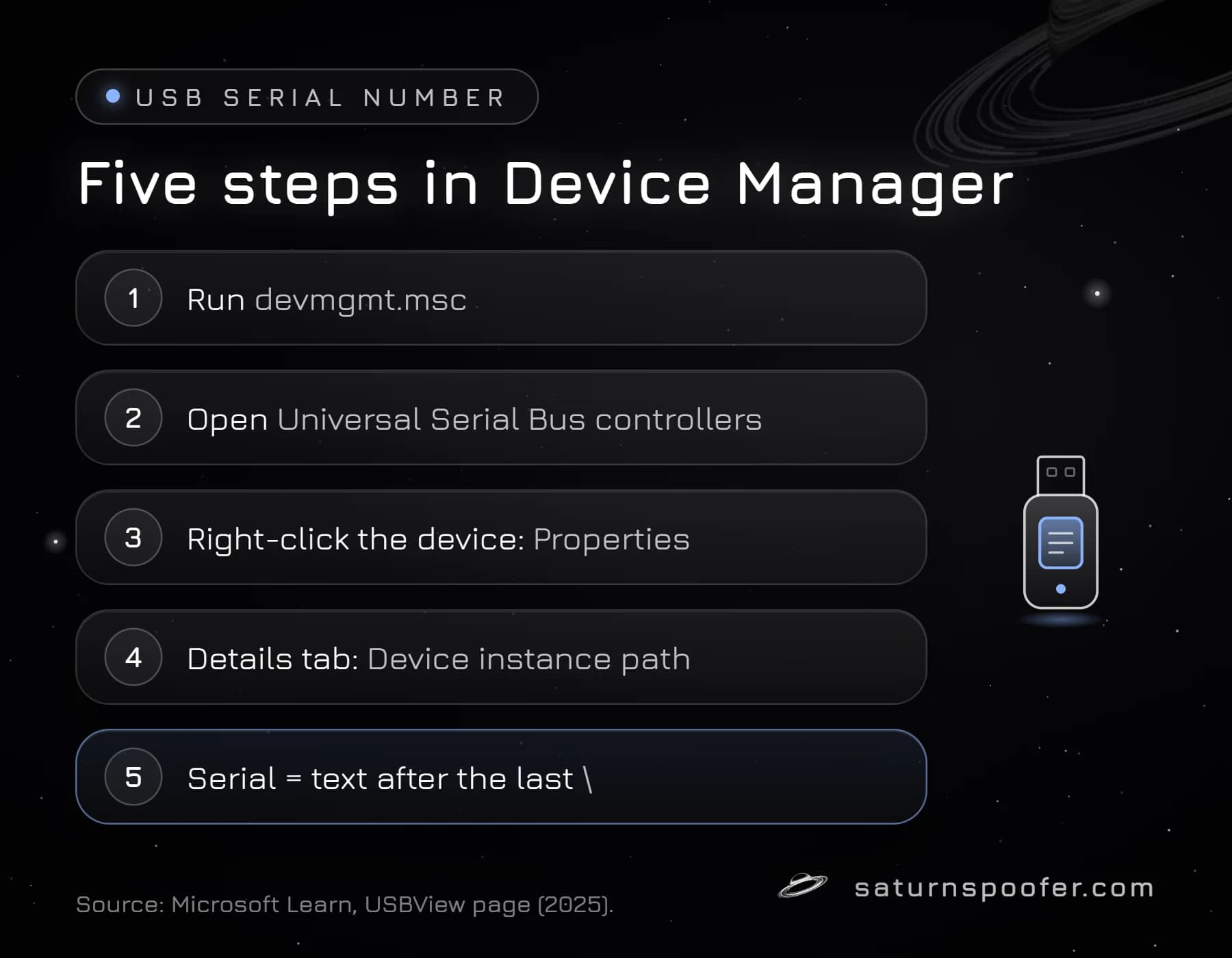
Device Manager shows every USB device's instance ID on its Details tab, and that ID carries the USB serial number whenever the device supplies one. Microsoft's USB documentation gives the route:
- Plug in the USB device, then press Windows key + R, type
devmgmt.mscand press Enter. - Expand Universal Serial Bus controllers. A flash drive or external disk usually appears there as USB Mass Storage Device.
- Right-click the device and choose Properties.
- Open the Details tab and pick Device instance path in the Property list.
- Read the text after the last backslash. If the device reported a serial, that text is it.
If the device you want is unplugged but was used before, View then Show hidden devices lists it too. For one stick, Device Manager is quickest. For every USB device at once, use PowerShell.
Find the USB Serial Number With PowerShell or CMD
PowerShell reads the USB serial number through the Get-PnpDevice cmdlet, which returns the device instance ID of every Plug and Play device. Run this in Windows PowerShell:
Get-PnpDevice -Class USB -PresentOnly | Format-List FriendlyName, InstanceId
-Class USB limits the list to USB devices and -PresentOnly skips devices that are not plugged in right now. The list view matters. In the default table, Microsoft's own examples cut the instance ID short, as in USB\VID_8087..., which hides the serial.
From Command Prompt, pnputil /enum-devices /connected /class USB prints the same device instance IDs. Microsoft's PnPUtil page says to run it from an administrator command prompt, and the /enum-devices command needs Windows 10 version 1903 or later. For the raw descriptor itself, Microsoft's free USBView tool from the Windows SDK shows the device, configuration, interface and endpoint descriptors of whichever device you select. The old WMIC route is gone on current Windows 11, the same removal that retired the WMIC BIOS serial commands.
Read the Device Instance ID: VID, PID and Serial
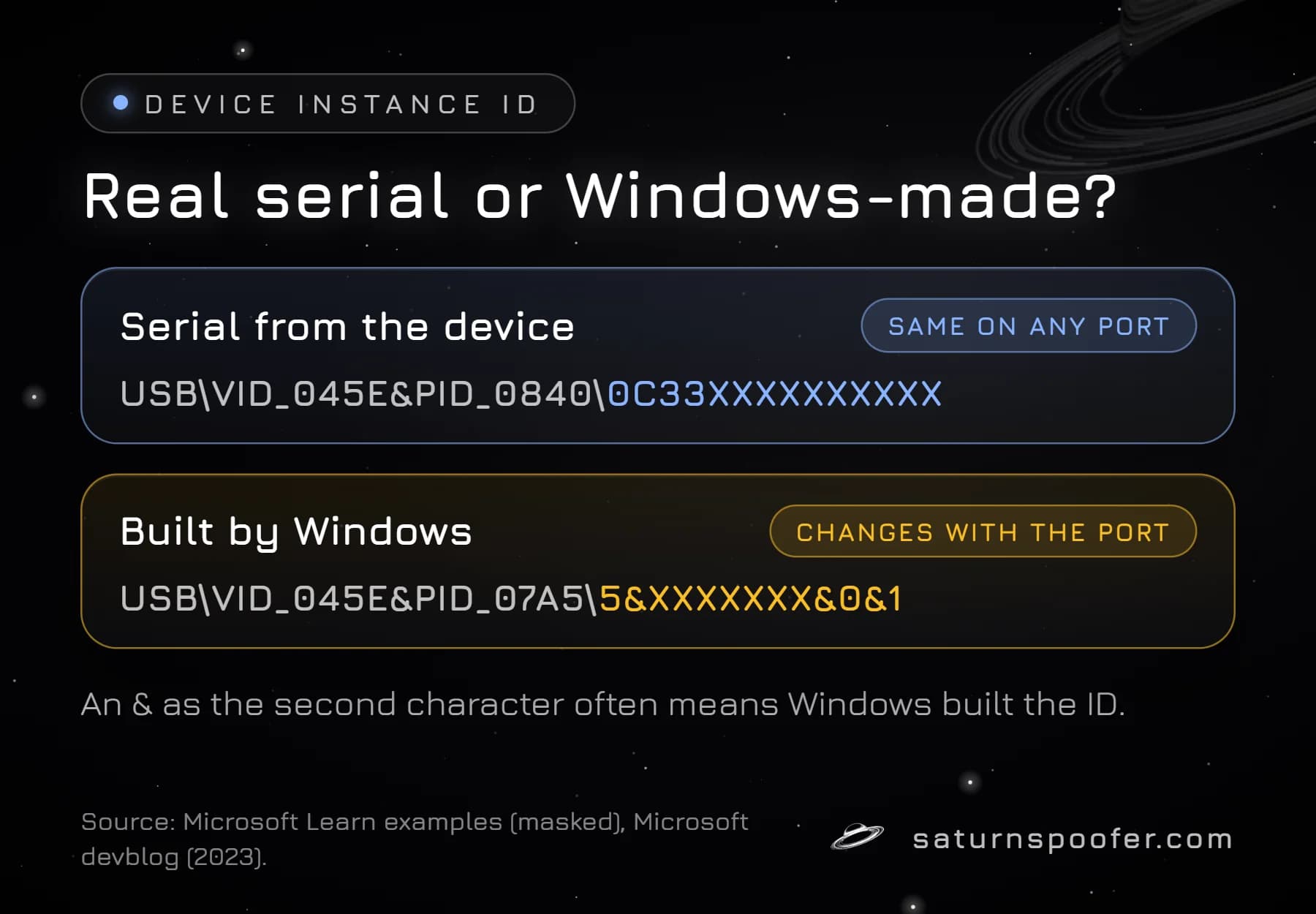
A USB device instance ID has three parts, and the USB serial number is only the last one. Microsoft's USB driver documentation shows this example, masked here:
USB: the bus the device sits on.VID_045E&PID_0840: the vendor ID and product ID, both 4-digit hexadecimal codes from the device descriptor.0C33XXXXXXXXXX: the instance ID, which here is the serial the device reported.
Windows joins the parts with backslashes, so the full path reads USB\VID_045E&PID_0840\0C33... in Device Manager. The vendor ID comes from the USB committee, the product ID from the maker, and the serial from the maker too, through the iSerialNumber index that points to a string stored on the device, as Microsoft's USB device descriptor reference describes it. Microsoft notes that an instance ID stays the same across restarts.
When Windows Makes Up the Serial
Not every USB device supplies a serial number, and when one doesn't, Windows builds an instance ID from where the device is plugged in. Microsoft's Pete Brown put it plainly in a June 2023 post on USB MIDI gear: without an iSerialNumber, Windows uses the device's parent information to tell it apart. Microsoft's own example pairs the device ID USB\VID_045E&PID_07A5 with the instance ID 5&XXXXXXX&0&1. Microsoft's instance ID page says the value holds serial number information if the bus supports it, "or some kind of location information".
There is a quick visual test. An instance ID with & as its second character, like 5&XXXXXXX&0&1, is widely read as a Windows-made ID rather than a factory serial, although forensic instructor Kevin Ripa's 2023 SANS write-up found that rule of thumb is not airtight. Windows can also be told to ignore a real serial: the IgnoreHWSerNum value in the usbflags registry key forces the USB stack to skip it, and Microsoft's USB registry entries page says the device instance is then tied to the port it is attached to.
A location-based ID changes when you move the device: Microsoft's MIDI post says a device plugged into a different port or a hub "appears as a new device". A real serial should follow the device to any port.
USB Serial vs Drive Serial vs Volume Serial
A USB flash drive can show three different numbers, and only one of them is the USB serial number:
| Number | Where it comes from | Changes when |
|---|---|---|
| USB serial | USB device descriptor | Stays with the device |
| Drive serial | Storage controller | Stays with the drive |
| Volume serial | Written when formatted | Every format |
The volume serial is the short code that vol and dir print, and formatting the stick replaces it. The drive-level number from tools like Get-Disk belongs to the storage controller, and the drive serial of a disk inside a USB enclosure can differ from what Windows reports. The 2023 SANS tests found enclosures and SATA-to-USB adapters reporting the enclosure's serial in place of the disk's, and different adapters gave different numbers for the same disk.
USB Serial Number Lookup: What VID and PID Tell You
A USB serial number lookup usually starts somewhere else: the vendor and product IDs. The vendor ID is assigned by the USB committee, so a public USB ID list turns VID_045E into a maker's name and the product ID into a model. The serial itself carries no maker or model information: it names one unit, and only the company that made it knows which one.
For browser apps, the WebUSB API exposes the same value as USBDevice.serialNumber, which MDN lists as experimental. The phrase "USB serial" also names something else: a USB-to-serial adapter that shows up as a COM port. Different device class, and its COM number is not a serial number.
Why Games and Anti-Cheats Care About USB Serials
A USB serial number is one of the device identifiers commonly read when software fingerprints a PC, along with the disk, board and network card values that together form a PC's hardware identifier set. Game publishers do not publish which identifiers their anti-cheat reads, so nobody outside those studios can confirm that a given game checks USB serials.
A USB network adapter is the clearest overlap: it can report a USB serial through its descriptor and it has a MAC address for its network interface, so it carries two identifiers at once, and a MAC address ban works on the second one. Bans on a machine rather than an account are hardware-level bans, and they follow the PC to every new account.
Can You Change a USB Serial Number?
A USB serial number is stored on the device itself, in what Microsoft calls a string descriptor maintained by the device, and Windows only reads it. No Windows setting, PowerShell command or registry edit changes the string the device sends. What Windows can do is stop using it: with IgnoreHWSerNum set, Windows files the device under a port-based ID instead.
Changing what the PC reports for its hardware is a wider job that touches every component, and the steps to change your PC HWID cover it part by part. Saturn's published spoof list includes USB connected-device descriptors next to the motherboard, disks, GPU, monitor, MAC address and TPM, so a Windows hardware ID spoofer like Saturn changes the USB values Windows reports rather than the device itself. A spoofer lifts a hardware ban from the PC's side, never a ban on the account itself. Epic Games, for its part, says its systems pick up software that masks or rewrites hardware IDs, and warns that a Fortnite account which leaves such software installed can be banned for good.
USB Serial Number FAQ
Where do I find a USB serial number in Windows?
Open Device Manager, expand Universal Serial Bus controllers, open the device's Properties and choose Device instance path on the Details tab. The text after the last backslash is the serial, if the device reported one.
Why does my USB serial number look like 5&XXXXXXX&0&1?
That pattern usually means the device reported no serial, so Windows built an instance ID from the port location. Plug the device into another port and Windows treats it as a new device with a new ID, which does not happen with a factory serial.
Is the USB serial number the same as the volume serial number?
No. The volume serial is written when a drive is formatted and changes with every format, while the USB serial comes from the device descriptor and stays with the device.
Do all USB devices have a serial number?
No. A serial string is up to the maker, and when a device supplies none, Windows falls back to an ID built from the port and hub the device sits on.
Can two USB devices have the same serial number?
Nothing in the descriptor forces uniqueness: Microsoft only calls it a manufacturer-determined serial. Windows reads it together with the vendor and product IDs in the device instance ID, so the serial only has to tell apart units of the same model.