Changing your HWID is a matter of changing the serial numbers that software reads from your computer, because an HWID is not one stored number but a fingerprint assembled from many of them. Some of those numbers live in Windows and can be edited in minutes. Most live in firmware, on the motherboard, the drives and the TPM chip, where Windows offers no setting to rewrite them. Even Windows builds its own set of up to 15 computer hardware IDs from firmware fields every time the PC boots, according to Microsoft driver documentation updated in June 2026.
That split decides everything else: which IDs you can change yourself, which ones need a new part, what an HWID changer does, and what it can cost you.
Can You Change Your HWID?
Yes, but only in part, and never with a single switch. Windows lets you edit a handful of software-level identifiers, while the identifiers behind most HWID checks are written into firmware by the manufacturer and read back unchanged on every boot.
There are three ways to move those firmware values. You can replace the part that holds them, you can run software that changes what Windows reports to other programs, or you can leave them alone and accept that the fingerprint stays the same. Editing the registry is not on that list, because the values that matter most are not stored there.
Which Hardware IDs Can Be Changed
The table below sorts the identifiers that HWID checks commonly read by where they are stored, since storage decides whether Windows can touch them.
| Identifier | Stored in | Can you change it? |
|---|---|---|
| MachineGuid | Windows registry | Yes, by editing the registry |
| Volume serial number | The drive's file system | Yes, it is file-system data |
| Computer name | Windows settings | Yes, in Settings |
| MAC address | Network adapter | Override yes, burned-in no |
| System UUID | Motherboard firmware | Not from Windows |
| BIOS and board serials | Motherboard firmware | Not from Windows |
| Drive serial | Drive controller firmware | Only with a new drive |
| TPM endorsement key | TPM chip | No |
| CPU processor ID | The processor | No, and not unique |
| RAM, GPU and monitor IDs | Each part | Only with a new part |
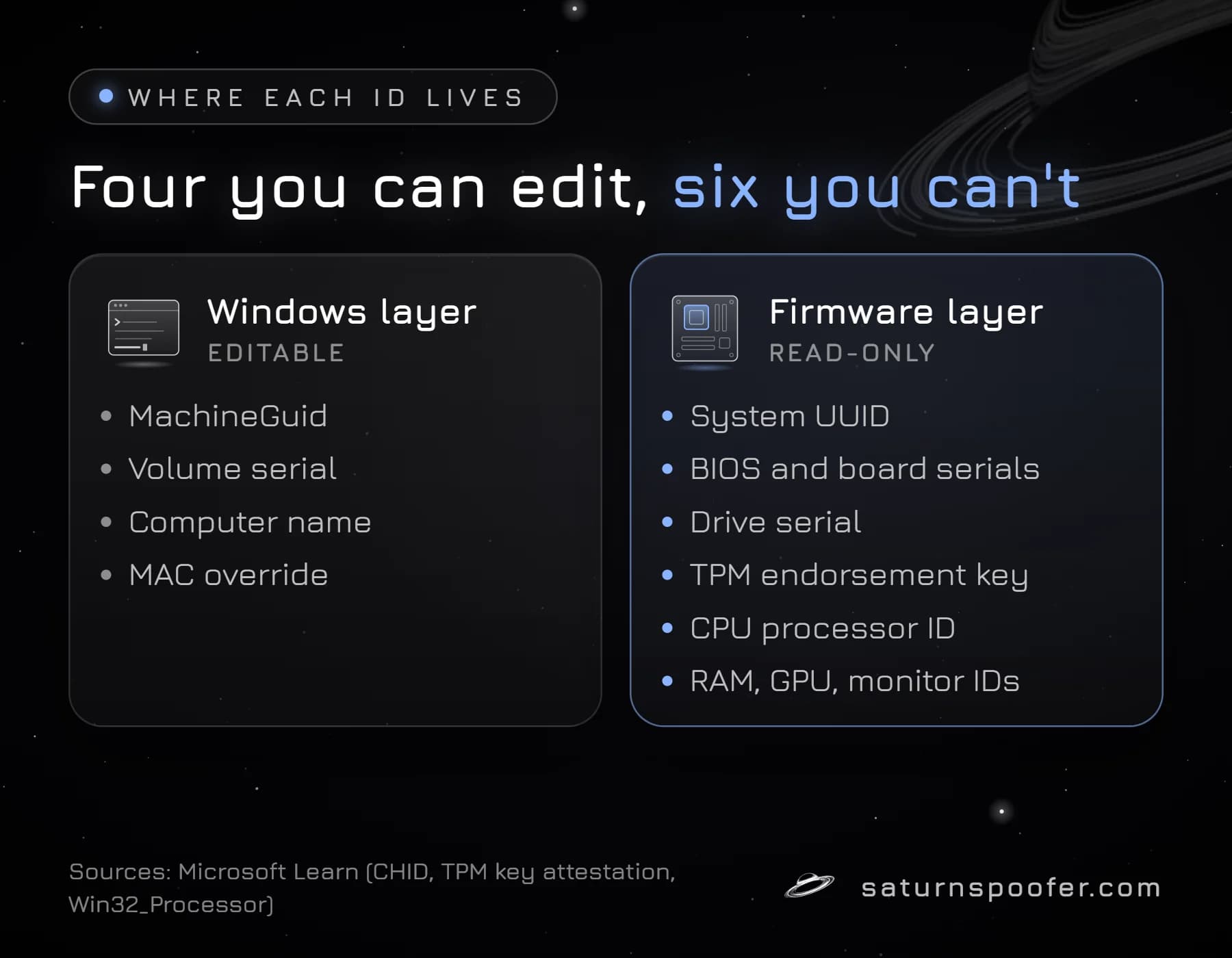
Four of the ten rows are easy. The other six are the hard ones, and they are why a fingerprint survives a clean Windows install.
The Three Ways to Change an HWID
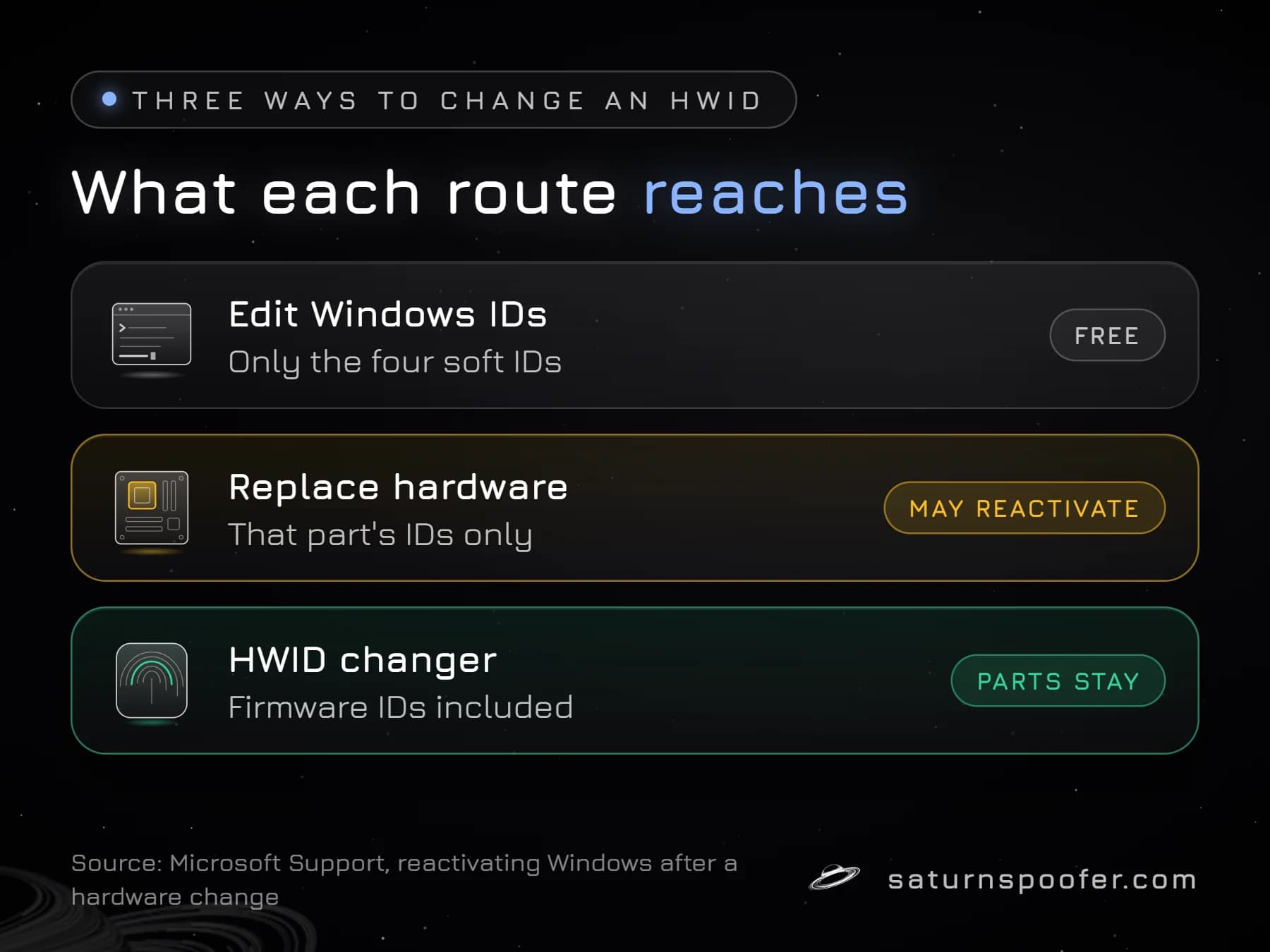
An HWID can be changed in three ways, and each reaches a different slice of the fingerprint:
- Edit the Windows-level IDs yourself. It costs nothing and takes minutes, but it only reaches the four soft rows of the table, and most HWID checks read the firmware rows too.
- Replace hardware. A new drive brings a new drive serial, a new network card a new MAC address, and a new motherboard a new system UUID and board serials. It costs real money, and Microsoft says a motherboard swap can leave Windows unable to find its digital license.
- Run an HWID changer, which rewrites the values Windows hands to programs, firmware rows included, while the parts stay in the PC. Short of new hardware, nothing else reaches the whole fingerprint.
Changing the Windows-Level IDs
The Windows-level IDs are the values Windows creates and stores for itself, so Windows is also where they can be changed.
MachineGuid
The machine GUID, stored as the MachineGuid value, is a GUID that Windows stores in its registry rather than in any hardware part. Changing it means editing that registry value by hand, and other software on the PC may still expect the old one.
Volume Serial Number
Microsoft documents vol C: as the Command Prompt command that shows a drive's label and serial number. That volume serial is stored in the file system, not in the drive's controller, which is why a volume serial number changer can rewrite it while the drive's firmware serial stays exactly as it was.
Computer Name
The computer name is the easiest ID on the list: Windows 11 changes it under Settings, System, About, Rename this PC, followed by a restart. Some programs include the name in a fingerprint, but a new name on its own changes very little.
MAC Address
A MAC address has two layers. The burned-in address is stored in the network adapter itself, and Windows can send a different one on top of it. For Wi-Fi, Windows 11 has a built-in Random hardware addresses switch under Settings, Network and internet, Wi-Fi. For other adapters, Microsoft's Set-NetAdapter cmdlet takes a -MacAddress value, and its documentation warns that not all network adapters support setting one. The full walkthrough on changing a MAC address also covers how a MAC ban differs from a full hardware ban.
What About SMBIOS, Drive and TPM IDs?
SMBIOS, drive and TPM identifiers cannot be changed from Windows, because Windows only reads them. The motherboard maker writes the system UUID, BIOS serial and board serial into the SMBIOS tables of the firmware, and Windows reports them to every program that asks through WMI. The SMBIOS UUID is a 128-bit value meant to be unique to one machine.
A drive serial number sits in the firmware of the SSD or hard drive controller, which is why reformatting or reinstalling Windows leaves it exactly as it was. The TPM is stricter still. In Microsoft's documentation on TPM key attestation, the endorsement key is described as injected at manufacturing time and unique for every TPM, with a flat "The EK can't be changed or removed." Software can only change what is reported about it.
The processor is the odd one out. Microsoft describes the ProcessorId value as processor information "that describes the processor features", taken from the CPUID instruction, so it reflects the model rather than one chip and makes a weak identifier on its own.
Why Editing One ID Rarely Changes Your HWID
Editing one ID rarely gives a PC a new HWID because HWID checks combine several identifiers and compare the whole set. A machine with a new MachineGuid but the same system UUID, drive serials and TPM key still matches on most of what gets compared.
Windows shows the principle itself. Microsoft's documentation on computer hardware IDs (CHIDs) explains that Windows hashes combinations of SMBIOS fields, such as the manufacturer, product name, BIOS vendor and BIOS version, with SHA-1 into a ranked set of GUIDs at every boot. None of those fields passes through the registry, so no registry edit moves them. Those CHIDs identify a model rather than one PC, but the method is the same one fingerprinting software applies to serial numbers.
What an HWID Changer or Spoofer Does
An HWID changer, usually sold under the name HWID spoofer, alters the hardware identifiers that Windows passes to other programs while every part stays where it is. It works on the firmware rows of the table as well as the Windows ones, which is what separates it from a registry edit.
Spoofers come in two modes, and whether you run a temporary or permanent spoofer decides how long the change lasts. In temporary mode the new IDs exist only while the spoofer is running, the real ones return as soon as it closes, and the user can move between as many ID profiles as they like. Permanent mode rewrites the IDs once, onto a single HWID profile, so a banned profile means buying a fresh one.
On the PC itself, the HWID ban is the part a spoofer can clear. A ban on an account is a different matter: it stays on the publisher's servers whatever the PC reports. From one loader, Saturn's HWID spoofer covers the CPU, the TPM, the motherboard and its SMBIOS data, RAM, NVMe, SSD and HDD drives, the GPU, the monitor's EDID, MAC addresses, USB devices and UEFI on Windows, plus the Windows volume serial and the MachineGuid, with a free 24-hour trial that needs only an email, no payment card.
Risks Before You Change Anything
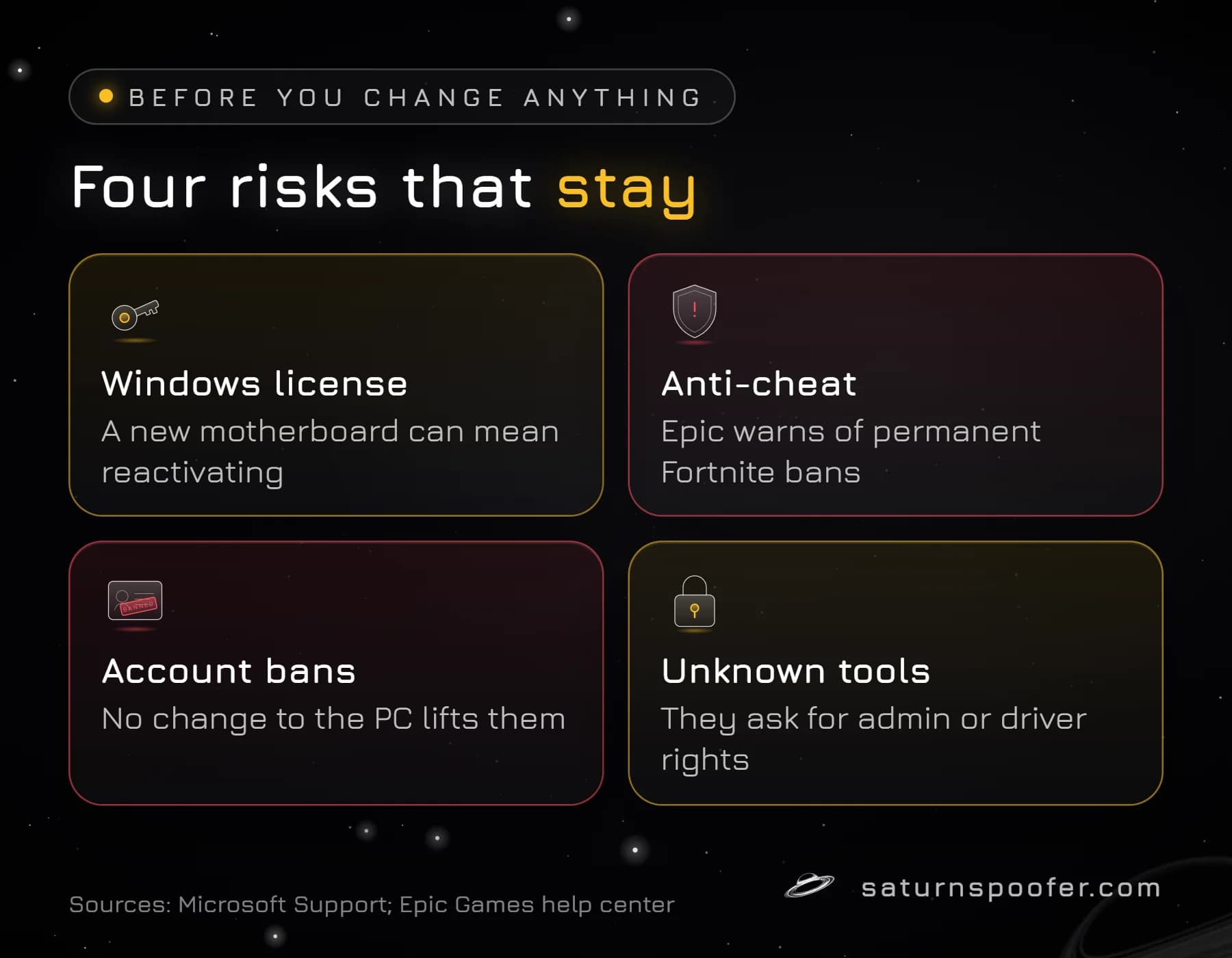
Changing hardware identifiers carries risks that have nothing to do with how the change is made:
- Windows activation. Microsoft's digital license is tied to the PC's hardware, and after a major change such as a new motherboard, Windows may stop finding its license and ask to be reactivated.
- Anti-cheat detection. Epic's help page on the Fortnite Hardware Identifiers Warning says the warning follows the detection of a program that hides or edits the PC's hardware IDs, and that a Fortnite account can be banned for good if that program stays installed. Most other publishers do not say which IDs they check.
- Bans and terms. Part of how HWID bans work is that the game treats getting around one as a rule break of its own, and an account ban is untouched by any change to the PC.
- Unknown tools. Free "HWID changer" downloads ask for administrator or driver-level rights on your PC, which is exactly the access malware wants. A tool you cannot trace to a real seller is a bad trade for a new fingerprint.
How to Change HWID FAQ
Does resetting your PC change your HWID?
No. Resetting a PC reinstalls Windows but leaves the firmware serials, the system UUID, drive serials and TPM key, exactly as they were, so an HWID built from them stays the same.
How can I reset my HWID?
There is no reset button for an HWID. Windows-level values can be edited in Windows itself, while firmware values change only with new hardware or with a changer that edits the values Windows passes on.
Can you change your HWID without a spoofer?
Partly. You can change the MachineGuid, volume serial, computer name and a MAC override yourself, but the system UUID, board and drive serials and TPM key need new parts.
Is an HWID changer the same as an HWID spoofer?
Yes, in practice. Both names describe software that changes the hardware identifiers Windows reports to programs, and most tools sold as changers work as spoofers.
How do I find my current HWID values?
PowerShell reads most of them, and the steps to check your HWID start with Get-CimInstance Win32_ComputerSystemProduct for the system UUID, Get-PhysicalDisk for drive serials and Get-NetAdapter for MAC addresses. Older guides lean on WMIC, a tool Microsoft says is gone from the 24H2 and 25H2 releases of Windows 11 since August 2026.